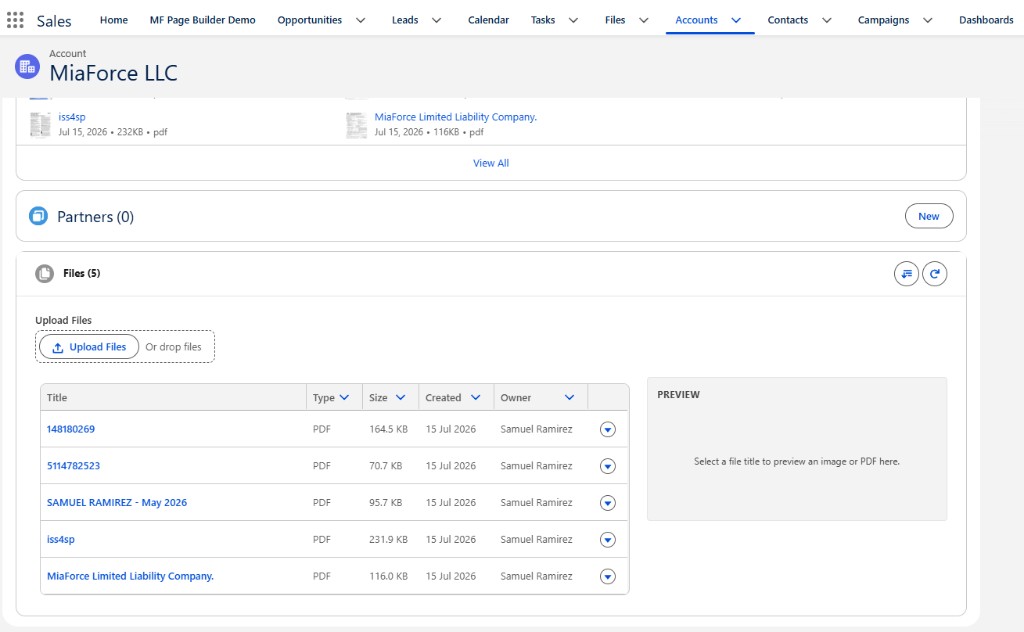
Files pile up on Salesforce records — contracts, IDs, scans, screenshots — and the standard Files related list gives you a flat, unsearchable list with a preview that sometimes just downloads the file. On records with dozens of attachments, that's painful. A purpose-built component adds the search, filtering, and reliable preview users expect.
How files actually work in Salesforce
Before improving the UI, it helps to know the data model. A file is a ContentDocument with one or more ContentVersion records (the version history); it's attached to a record through a ContentDocumentLink. To list the files on a record you query the links by LinkedEntityId and join to the latest version:
SELECT ContentDocumentId, ContentDocument.Title,
       ContentDocument.FileExtension, ContentDocument.ContentSize,
       ContentDocument.LatestPublishedVersionId
FROM ContentDocumentLink
WHERE LinkedEntityId = :recordId
ORDER BY ContentDocument.CreatedDate DESC
What the standard list is missing
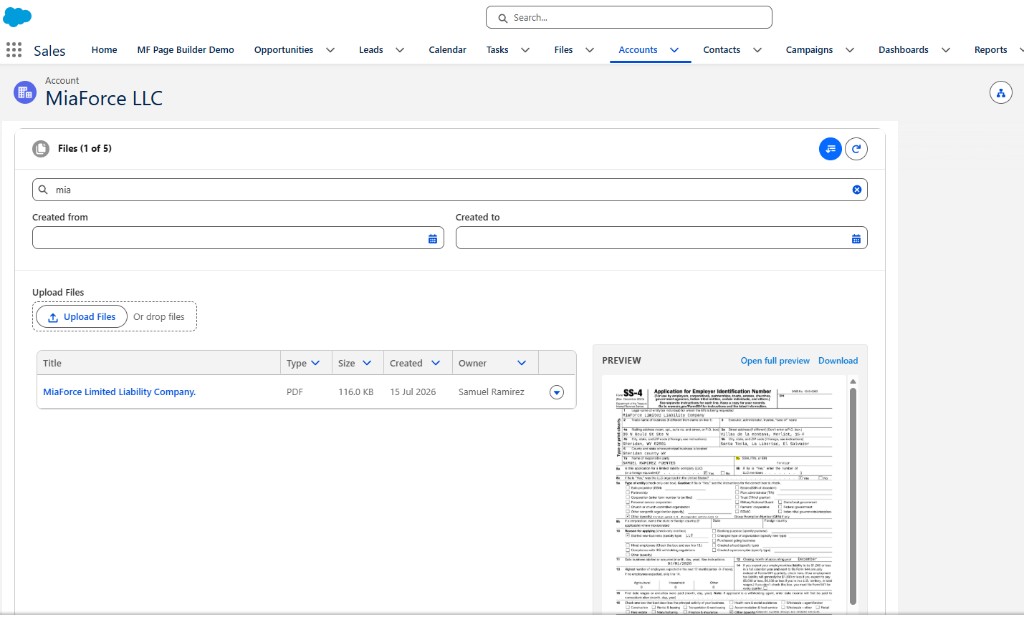
- Search by file name — essential once a record has more than a handful of files.
- Filtering by file type (PDF, image, document) so users can find "the contract" quickly.
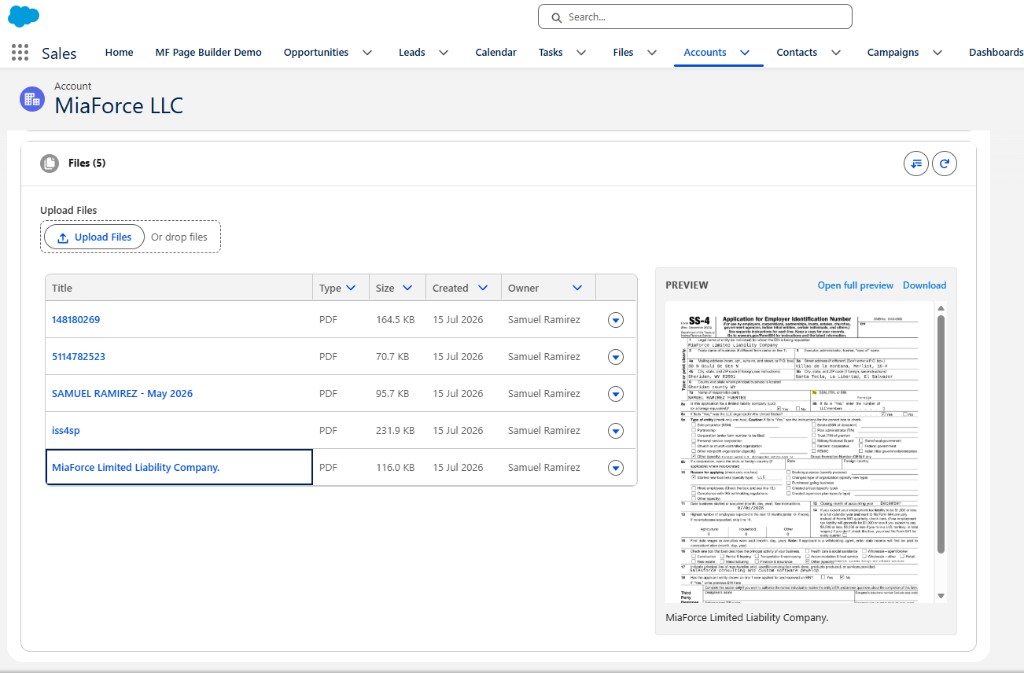
- Reliable preview — the native experience sometimes downloads or shows a blank pane depending on file type.
- Convenient actions like a clear download link and "open full preview" right where you're looking.
Inline preview without freezing the page
The most common preview complaint is that clicking a file freezes the whole component behind a spinner. The fix is to scope the loading state to the preview region only, so the file list stays interactive while the preview loads. For supported types, open the native preview via the NavigationMixin file preview action; provide a download fallback for types that don't preview cleanly:
this.previewLoading = true;                // spinner only in the preview panel
this[NavigationMixin.Navigate]({
    type: 'standard__namedPage',
    attributes: { pageName: 'filePreview' },
    state: { selectedRecordId: contentDocumentId }
});
Offering both "open full preview" and a direct "download" link inside the preview covers every file type predictably.
Small detail, big polish: if a container's top corners render blank, it's usually a missing overflow: hidden on the rounded wrapper — the child header paints over the radius. One line fixes it.
Make it configurable
A files component earns its place when it works on any object without code changes. Expose the object/record context and options (which file types to allow, default sort, whether to show preview) so admins can drop it on a Case, an Account, or a custom object and get the same clean experience. That's the design of the MF Custom File List accelerator: search, type filters, inline preview with a scoped spinner, and download — placed on any Lightning record page.
Frequently asked questions
How are files stored and related to records in Salesforce?
A file is a ContentDocument with one or more ContentVersion records, linked to a record via a ContentDocumentLink. List a record's files by querying ContentDocumentLink on LinkedEntityId and joining to the latest version.
Can you preview a file inline in an LWC?
Yes — open the native preview via NavigationMixin or embed an inline preview. Load only the preview region so a click doesn't freeze the whole component.
Why does clicking a file download it instead of previewing?
Some file types and link setups trigger a direct download or a blank preview. Using the proper preview navigation for supported types, with a download fallback, gives predictable behavior.