Whether it's an immigration case, a loan application, an onboarding, or a compliance review, the same question keeps coming up: which required documents do we still need from this client? Salesforce stores the files, but it doesn't know a passport from a pay stub, or whether the "proof of address" is still missing. A document classification workspace closes that gap.
Files aren't the same as requirements
Out of the box, a record's files are just an undifferentiated list. The business need is different: you have a checklist of required documents ("Passport", "Proof of Address", "Signed Agreement"), and you need to know, per case, which requirements are satisfied, pending, or missing. That means classifying each uploaded file against a requirement and tracking status as data you can report on.
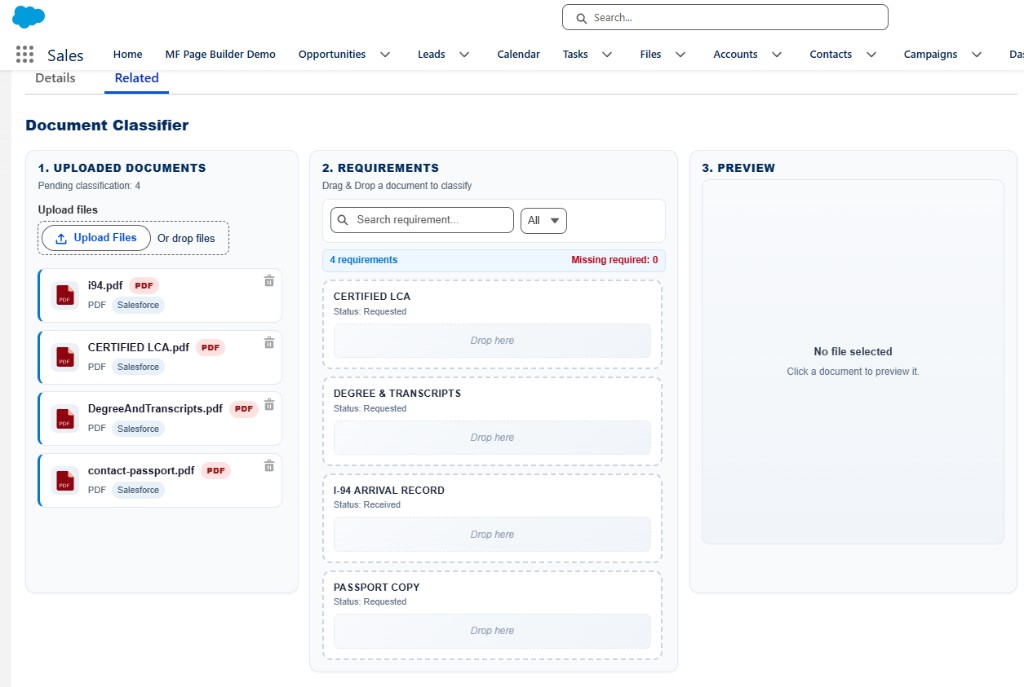
The workspace: upload, drag, classify
A good classifier component puts three things on one screen:
- An upload area for new files.
- The list of requirements for this record, each showing its status.
- The uploaded files, which the user drags onto the requirement they satisfy.
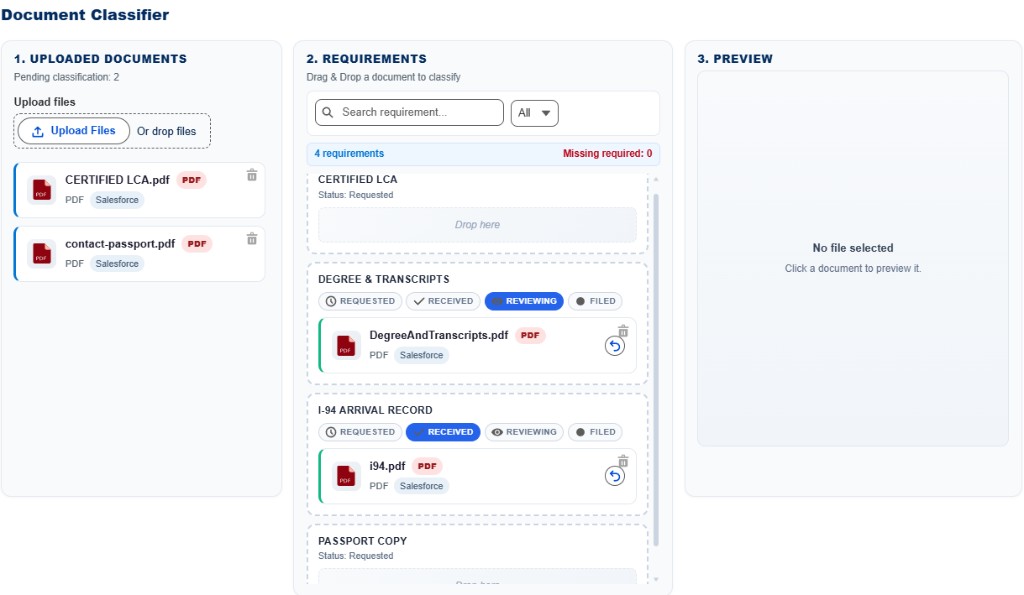
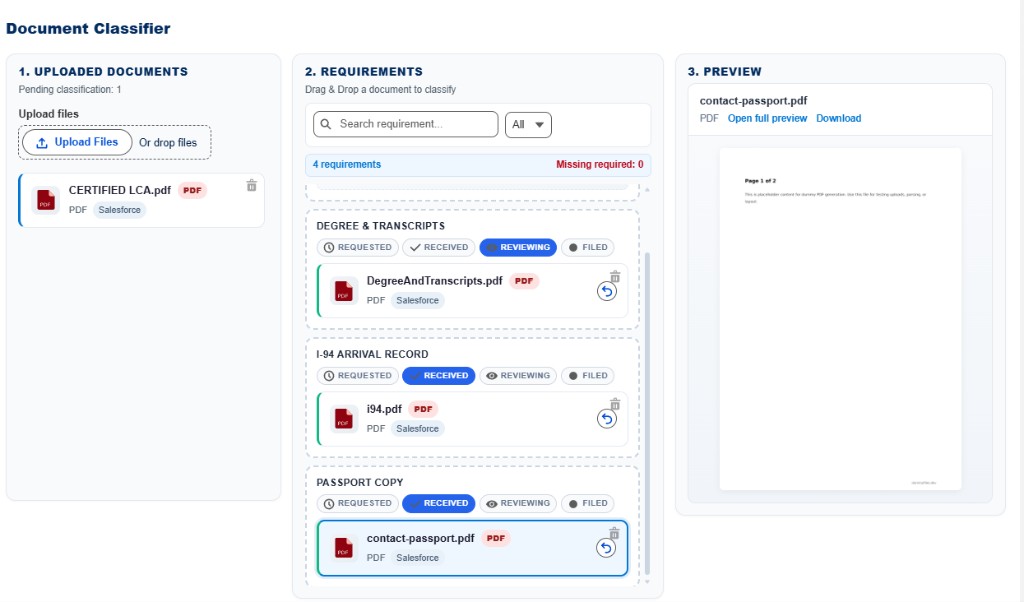
Dragging a file onto "Proof of Address" links them and flips that requirement to complete — no navigating away, no separate junction-object screen.
Status that behaves sensibly
Small interaction rules make a big difference to how trustworthy the tool feels:
- Don't allow classifying an empty document. A requirement with no file shouldn't be marked complete.
- Use clear status icons instead of a raw combobox — a check, a clock, an empty circle communicate faster and reduce misclicks.
- Clear the status automatically when a document is unclassified or deleted, so the checklist never shows "complete" for a file that's gone.
Preview matters here too: reviewers need to open a document to verify it's the right one. Scope the loading spinner to the preview panel so opening a file doesn't freeze the whole workspace, and offer "open full preview" plus "download" for every file type.
Report on completeness
Because each requirement and its status are stored as records, completeness becomes reportable. You can answer "which cases are missing documents?", "which document type is most often outstanding?", or "how complete is each reviewer's queue?" with standard Salesforce reports and dashboards — no extra tooling.
Built for case and compliance workflows
This pattern fits any process with a required-document checklist. The Document Classifier accelerator provides the record-page workspace — upload, drag-to-classify, icon-based status, inline preview with a scoped spinner, and automatic status clearing on delete or unclassify — so teams can see document readiness at a glance and report on it across the org.
Frequently asked questions
How do you track required documents on a Salesforce case?
Define the required documents as a checklist, classify each uploaded file against a requirement, and store the requirement, status, and file link so you can report on which cases are missing which documents.
Can you drag and drop files to categorize them?
Yes. A Lightning Web Component can show uploaded files alongside requirements and let a user drag a file onto a requirement to classify it, updating status without leaving the record page.
How do you report on document completeness?
Because each requirement and status are stored as records, standard Salesforce reports and dashboards can show completeness by case, document type, or owner.